Support
Email us with questions, bug reports and suggestions: info@varolweb.com We usually reply within 2 business days. Please include your macOS version, the app version (App Icon Atelier › About App Icon Atelier) and the steps that led to the problem. Screenshots help.
Subscription
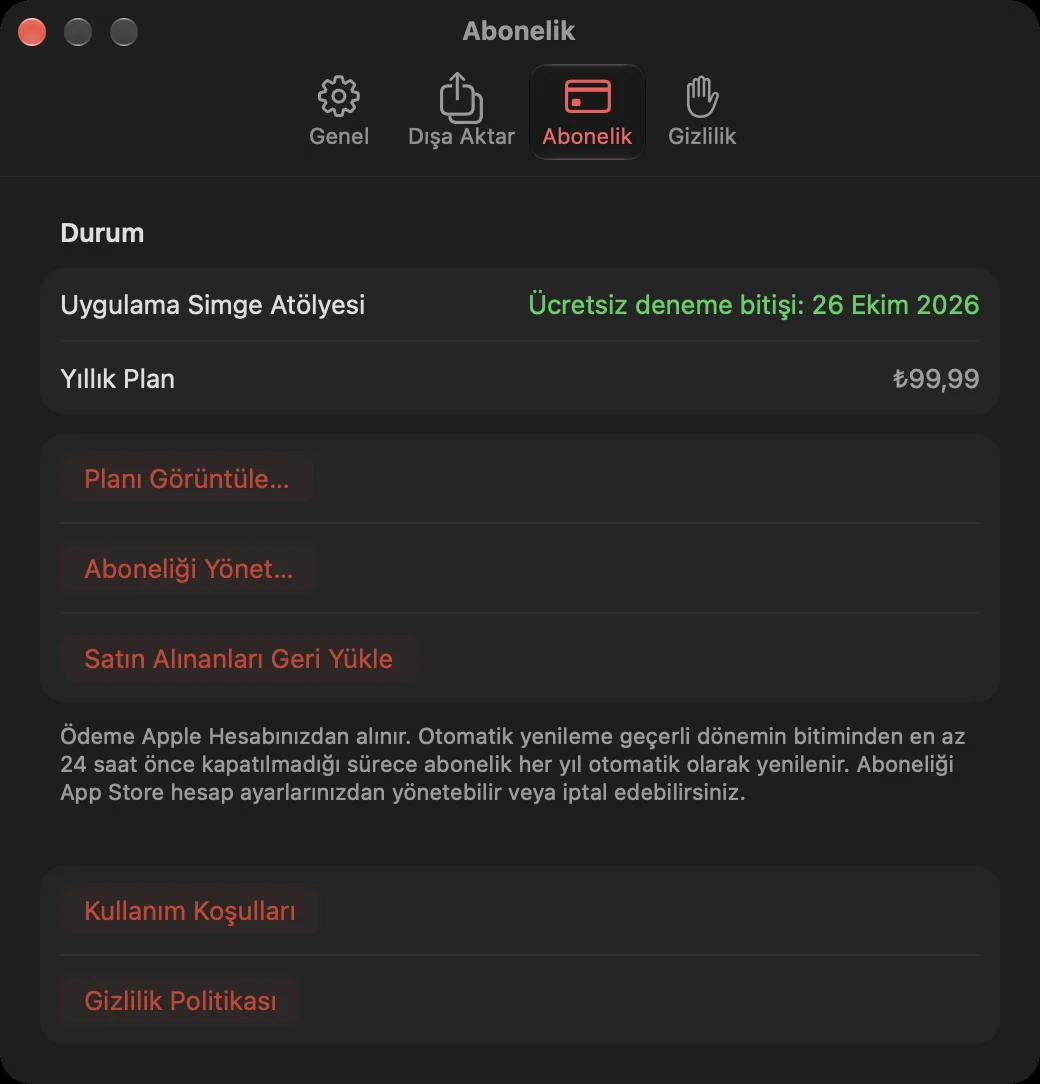
- Restore purchases: Settings › Subscription › Restore Purchases. Use it on a new Mac or after reinstalling the app. - Manage or cancel: Help › Manage Subscription…, or Mac App Store › your account › Subscriptions. - Refunds: Apple handles all payments, so refund requests go to Apple at reportaproblem.apple.com.
Deleting your data
In Settings › Privacy › Delete All Icons and Settings… you can delete every icon, its original artwork and all edits from this Mac. Exported files and your subscription are not affected.
Common questions
- The Icon Advisor or Image Playground isn't available: These features need a Mac that supports Apple Intelligence, with it turned on in System Settings › Apple Intelligence & Siri. - My image looks blurry: For the best results use a source of at least 1024 × 1024 pixels or a vector file (PDF, SVG). The app warns you about smaller sources. - Xcode doesn't show the new icon: Build the project again in Xcode (⌘B) after exporting. If needed, use Product › Clean Build Folder. - Corner radius isn't applied to Apple icons: That's intentional. Apple platforms apply their own mask and Liquid Glass effects, so Apple outputs are full-bleed, opaque squares. Corners and borders only apply to Android legacy icons, web icons and the single PNG.